How-to
How to add tasks to NeoKaam from a Claude chat
Plan an event or sort out your meeting notes in Claude, then say “add these to NeoKaam”, and the tasks appear in your project. Here is how to connect the two, one screen at a time. You sign in with your own NeoKaam account, and you never type your password into Claude.
Quick answer
In Claude, open Customize, then Connectors, and add a custom connector named NeoKaam with the URL https://neokaam.com/api/mcp.[1][2] Choose Connect, sign in to NeoKaam with your own account, and choose Allow. Then, in any chat, ask Claude to add your tasks. Anthropic lists custom connectors on the Free, Pro, Max, Ultra, Team and Enterprise plans, and a Free account can add one.[1]
Before you start
- A Claude account. Anthropic lists custom connectors on the Free, Pro, Max, Ultra, Team and Enterprise plans.[1] Free users can add one custom connector.[1]
- A NeoKaam account. Any plan works, the free one too.
- Nothing to install. Claude connects to NeoKaam from Anthropic’s cloud, not from your own computer, on claude.ai, in Claude Desktop and in the mobile apps.[1]
The steps below are for a Free, Pro, Max or Ultra plan, on the web at claude.ai.[2] On a Team or Enterprise plan, an Owner adds the connector for the whole organization, under Organization settings, then Connectors.[1] Each member then opens Customize, then Connectors, finds it and chooses Connect, and signs in with their own NeoKaam account.[1][2] Each person sees only what their own account can see.
Add NeoKaam to Claude
Step 1: Open Claude’s connectors
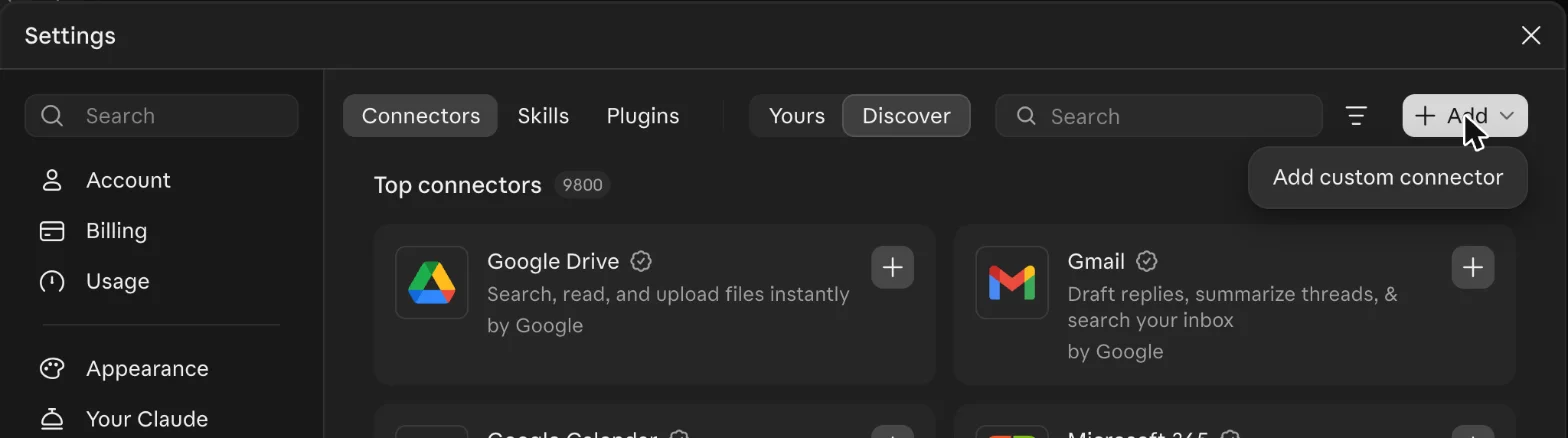
Step 2: Type the name and the URL
In the Add connector box, type NeoKaam as the name. This is the name you will see in your list of connectors. As the server URL, type https://neokaam.com/api/mcp. Then choose Continue.
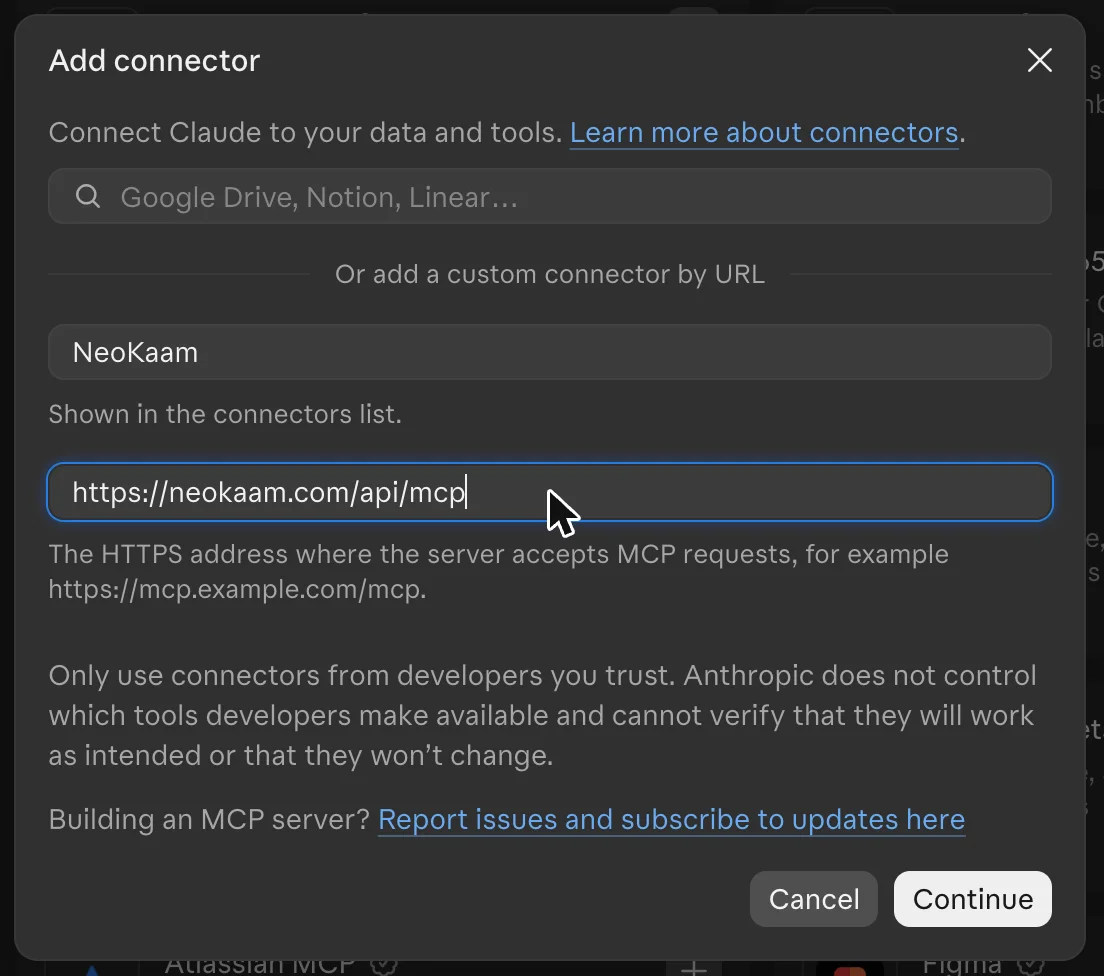
Step 3: Leave the sign-in settings as they are
Claude reads the server and fills in the sign-in settings itself. Under Authentication, Sign in now is chosen and marked Detected. Under OAuth client, Use Claude’s published identity is chosen and marked Detected too. Anthropic’s page marks that one as recommended.[1] Leave both as they are and choose Add.
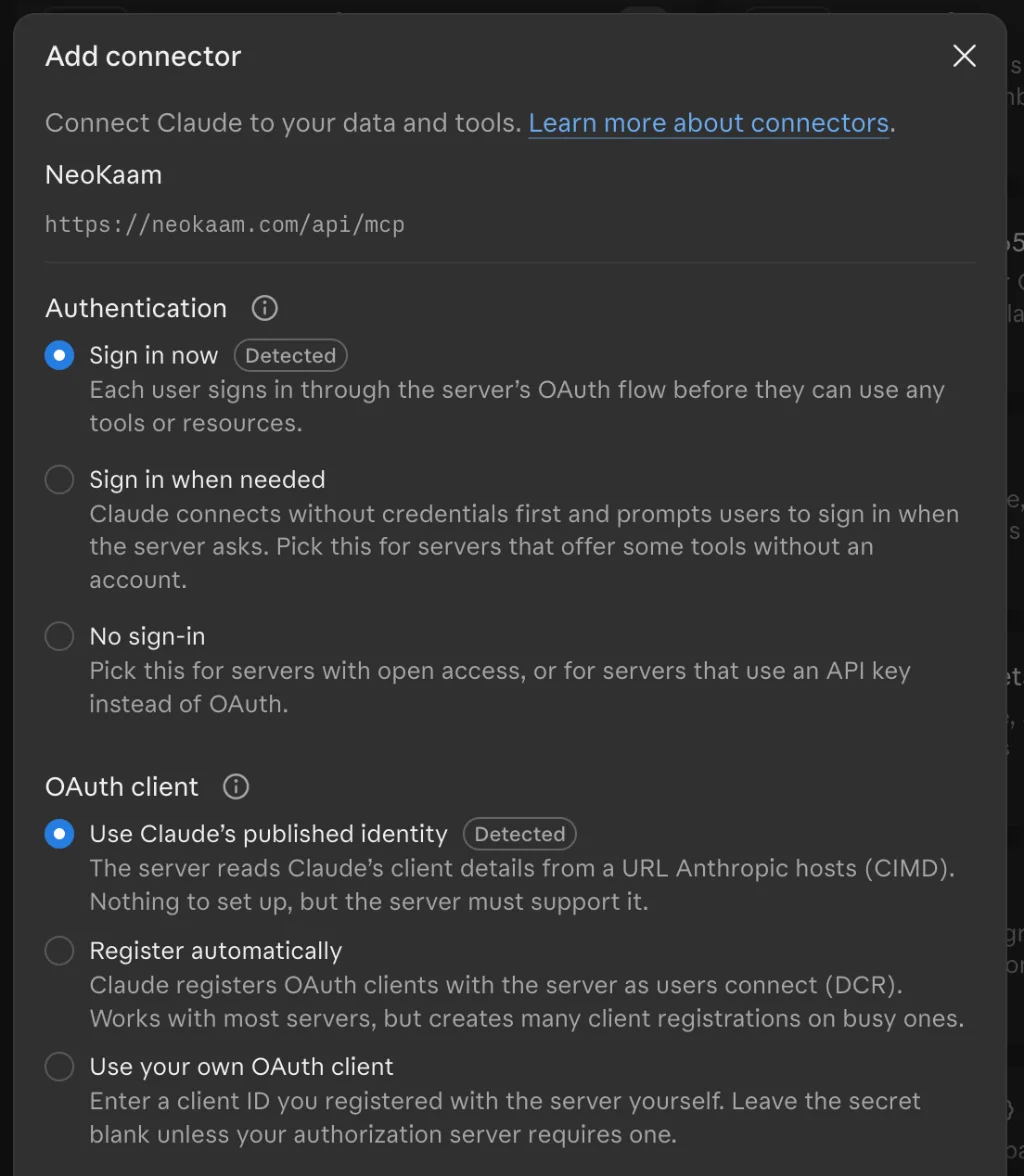
Step 4: Connect
The new connector opens and says you are not connected to NeoKaam yet. Choose Connect. A NeoKaam page opens.
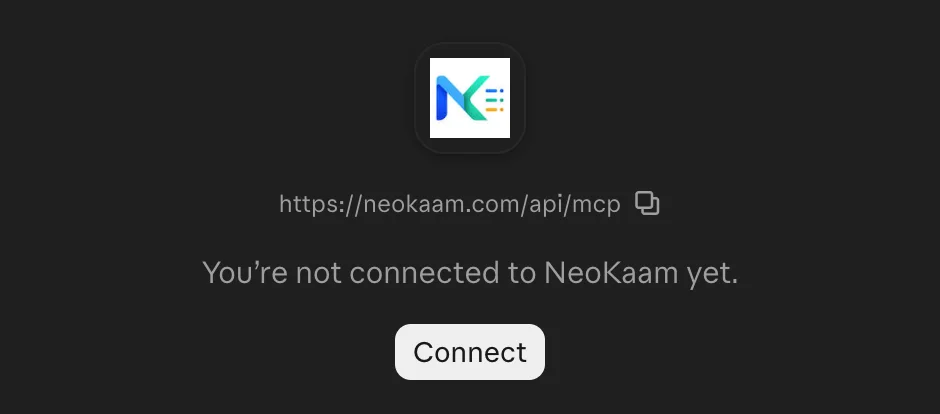
Sign in and allow
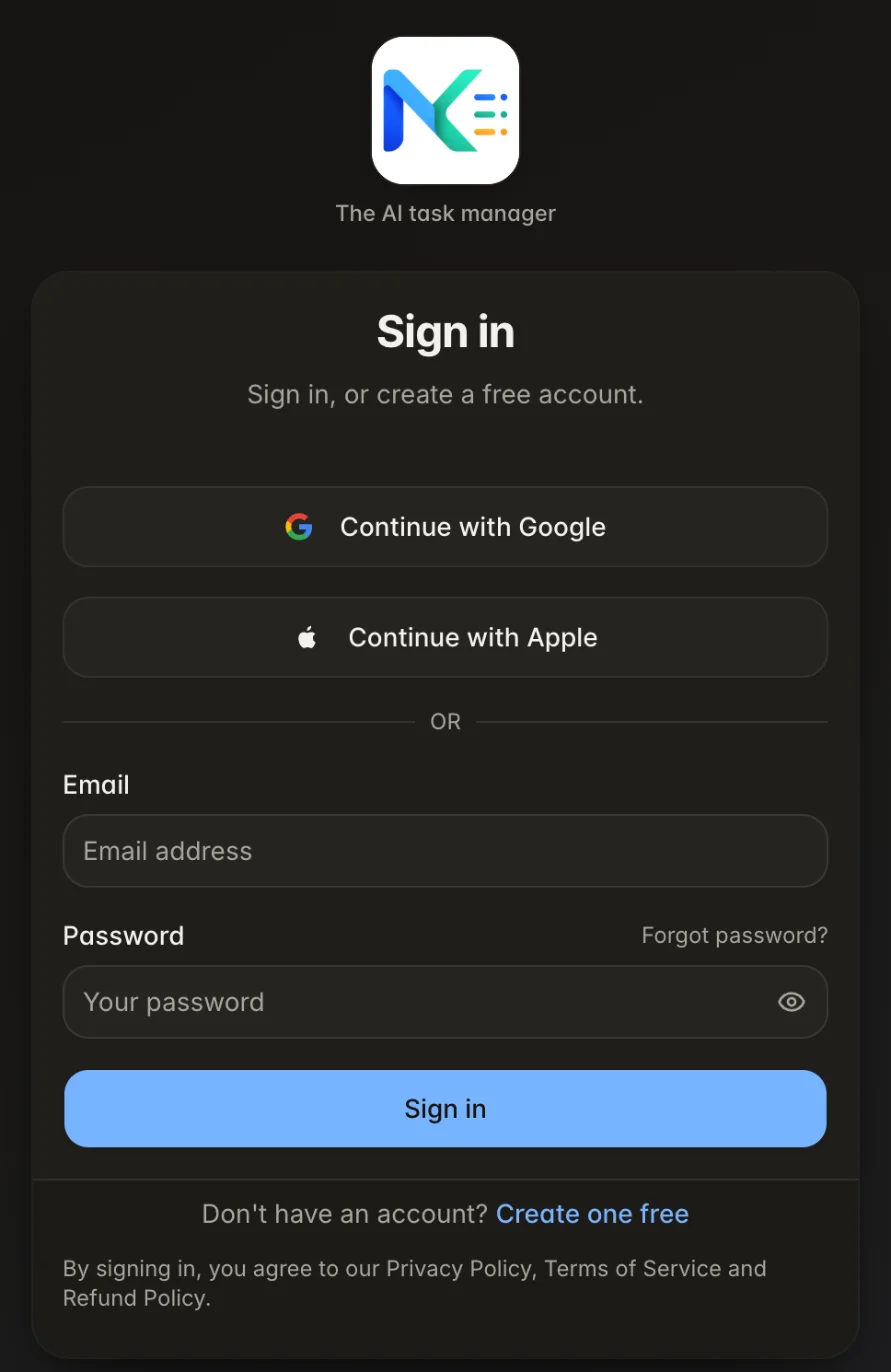
Step 5: Sign in to NeoKaam
Sign in the way you always do: with Google, with Apple, with your email and password, or with your organization’s single sign-on. This is NeoKaam’s own page, at neokaam.com: you never type your password into Claude. If you are already signed in to NeoKaam in this browser, you go straight to the next screen.
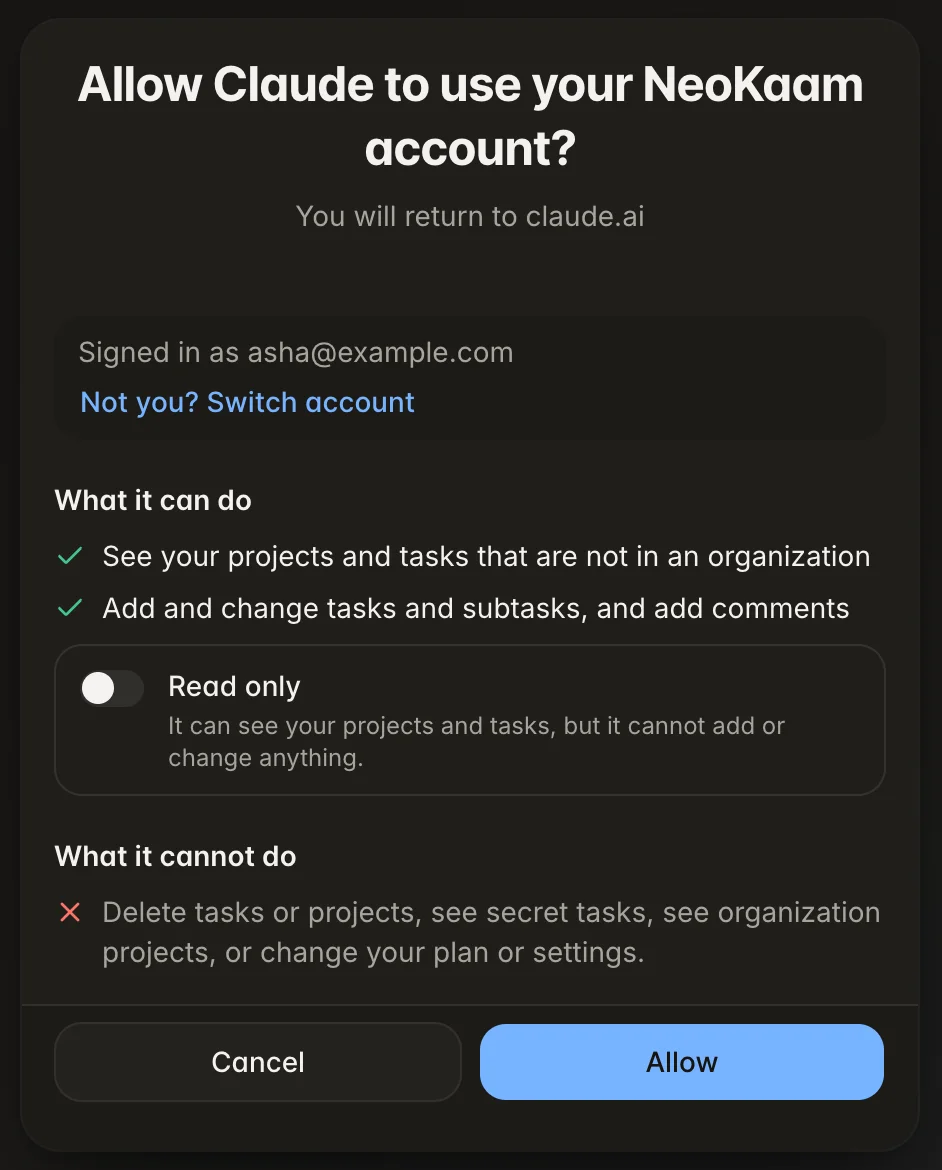
Step 6: Read what Claude may do, then allow
NeoKaam asks: “Allow Claude to use your NeoKaam account?” Check that it shows your own email after Signed in as. If it does not, choose Not you? Switch account. Then read the two lists. What it can do: see your projects and tasks that are not in an organization, add and change tasks and subtasks, and add comments. The second list, What it cannot do, has its own section further down.
If you want Claude only to look, switch on Read only first. Then Claude can see your projects and tasks, but it cannot add or change anything. Choose Allow, and you return to claude.ai.
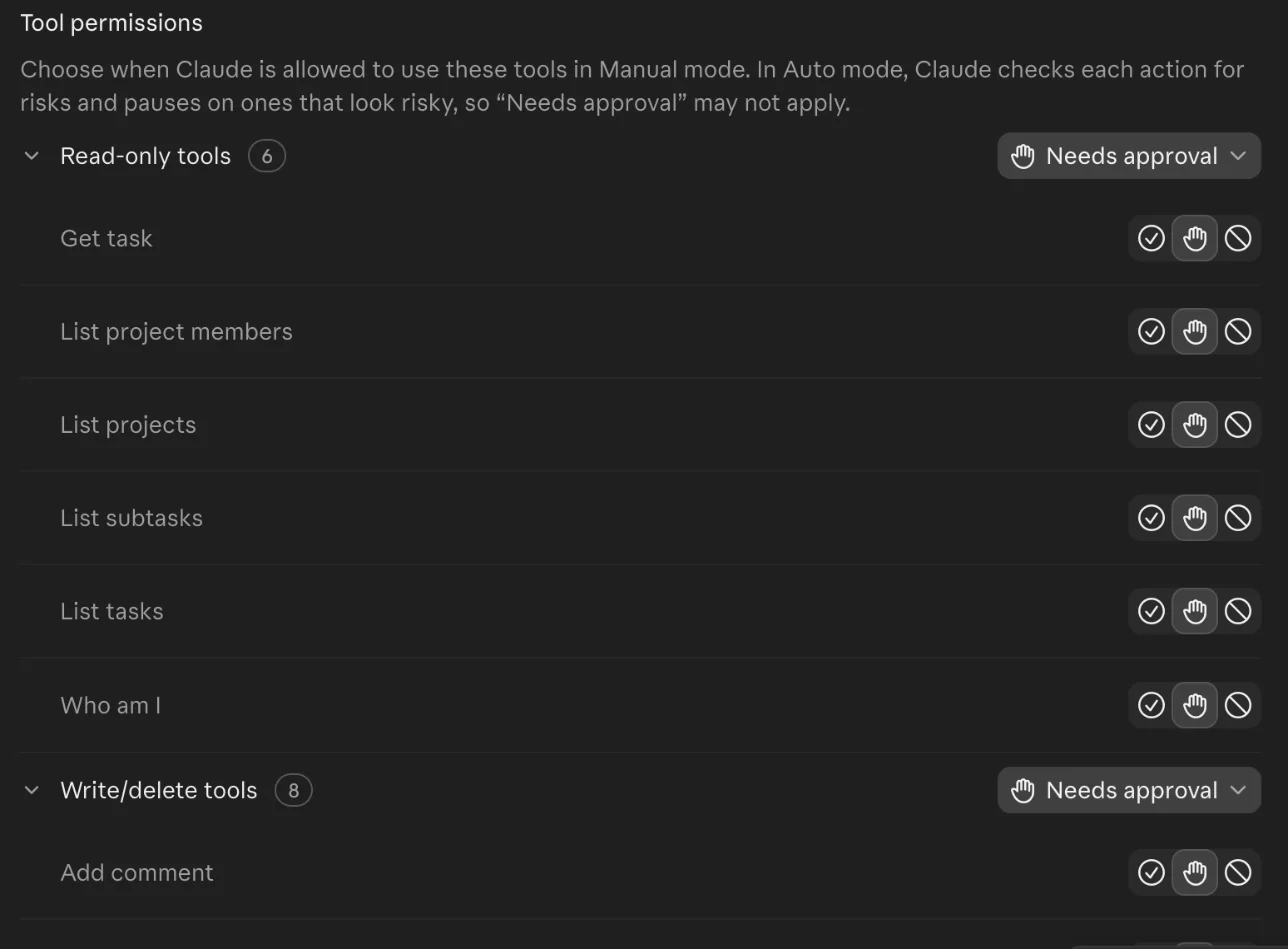
Step 7: Choose when Claude asks you
Back in Claude, the connector’s page lists its tools under Tool permissions: the read-only tools first, then the tools that change something. Claude calls that second group “Write/delete tools”, but NeoKaam gives it no tool that deletes. With Needs approval, as in the picture, Claude asks you before it uses a tool. You can change it for a group or for one tool. The page also says this is for Claude’s Manual mode: in Auto mode, Claude checks each action and pauses on the ones that look risky, so “Needs approval” may not apply.
Add tasks from a chat
Step 8: Ask Claude
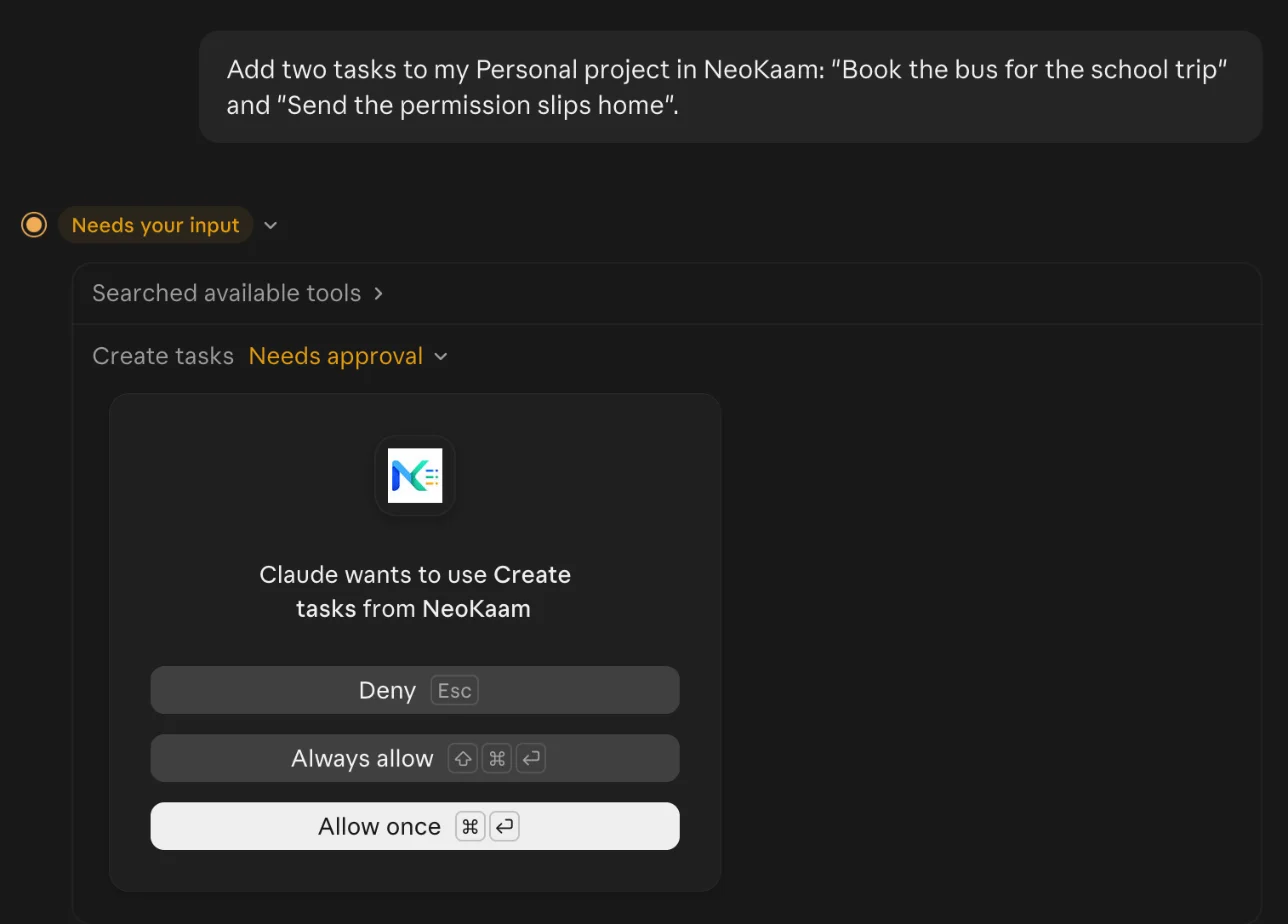
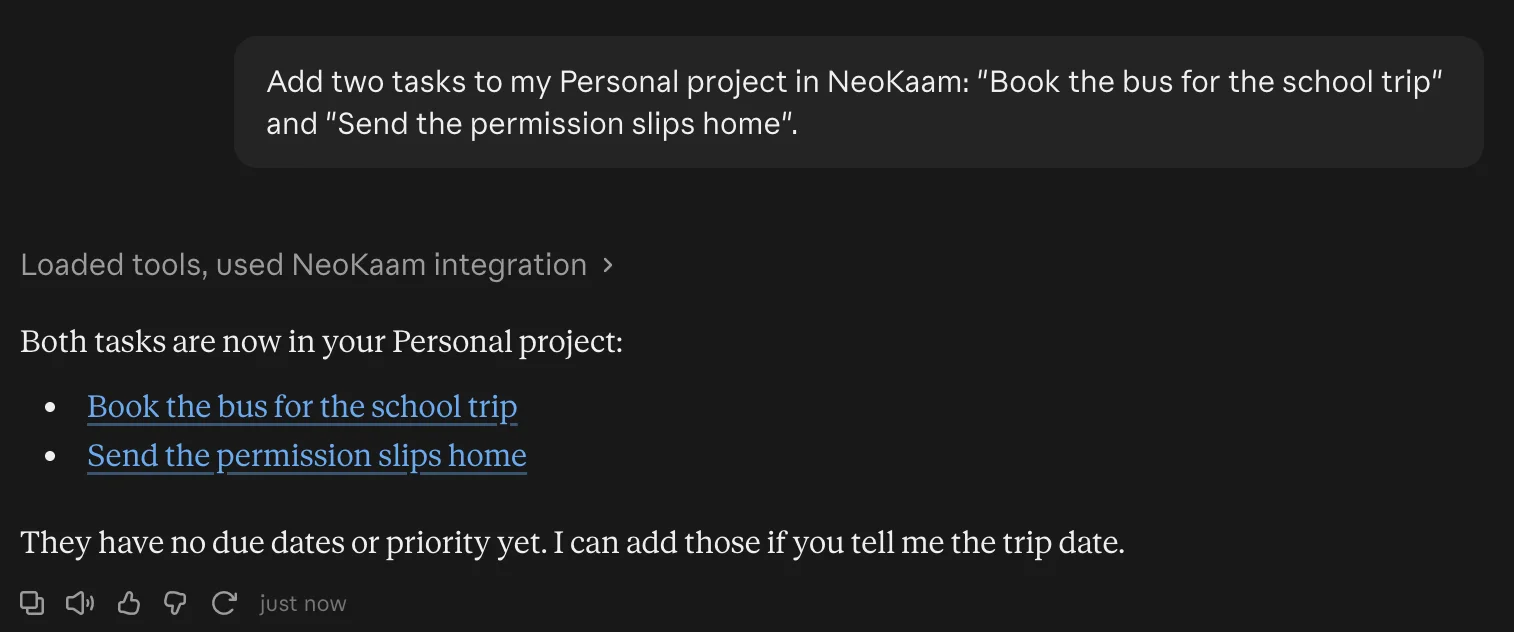
Open a new chat and ask in your own words. For example: “Add two tasks to my Personal project in NeoKaam: ‘Book the bus for the school trip’ and ‘Send the permission slips home’.” You can give due dates, subtasks and the person each task is for in the same message.
Because the tool needs approval, Claude asks first: “Claude wants to use Create tasks from NeoKaam.” Choose Allow once. Always allow lets Claude use that tool without asking again. Anthropic’s advice is to choose it only for a server and a tool you trust to run unsupervised.[1] Deny stops it.
If Claude does not use NeoKaam at all, check that the connector is on for this chat: choose the + button in the chat box, then Connectors, and switch it on.[1]
Step 9: Claude adds the tasks
Claude tells you when the tasks are in. Here, it lists both, each as a link to the task. You can go on in the same chat: ask it to add a date, or ask what is due this week.
Step 10: Find them in NeoKaam
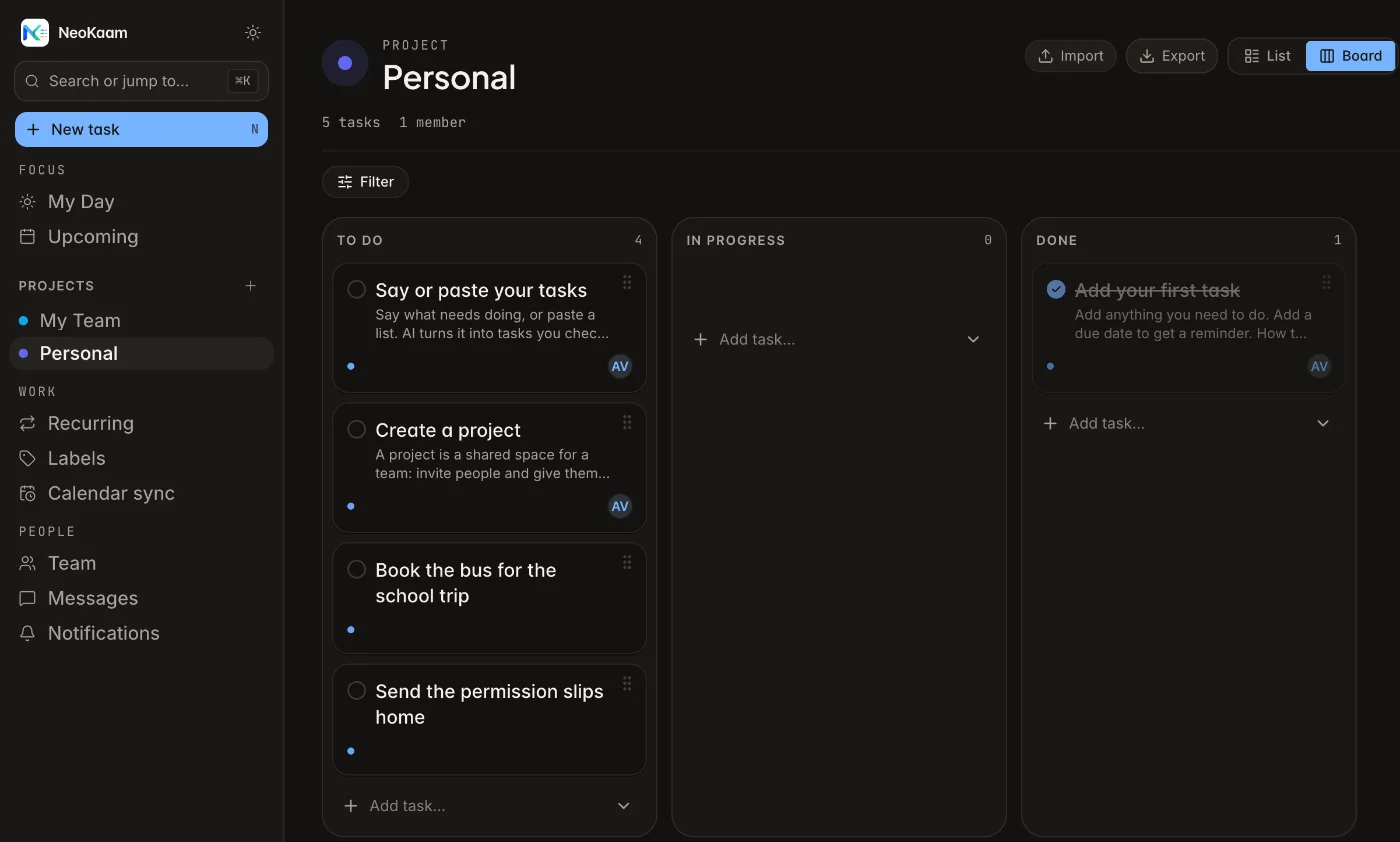
Open the project in NeoKaam, on the web or on your phone. The new tasks are there, in To do, like any task you add yourself.
What Claude cannot do in NeoKaam
The connection acts as you, inside your own account, with only what you allowed. It cannot:
- Delete tasks or projects.
- See secret tasks.
- See organization projects. Only your projects and tasks that are not in an organization are reachable.
- Change your plan or settings.
With Read only on, it cannot add or change anything either. For the full reference, including what is shared, see the help page for AI assistants.
How to disconnect
Step 11: Disconnect in NeoKaam
In NeoKaam on the web, open Profile and find Connected apps. Claude is listed there, with the access you chose and when it was last used. Choose Disconnect, and it stops working at once. The phone app’s Settings has Connected apps too. You can connect again at any time.

You can also remove the connector in Claude: open Customize, then Connectors, and choose Remove or the three dots next to it.[1] To be sure the connection has ended, also disconnect it under Connected apps.
Questions people ask
Is my password shared with Claude?
No. You sign in on NeoKaam’s own page, and NeoKaam gives Claude access of its own, which you can end at any time. Anthropic’s help page says this kind of sign-in lets Claude work for you “without Claude ever seeing your actual password”.[1]
Can Claude delete my tasks?
No. It cannot delete tasks or projects; the section on what Claude cannot do has the full list.
How do I stop it?
In NeoKaam, open Profile, find Connected apps and choose Disconnect: it stops working at once. The phone app’s Settings has Connected apps too. Signing out everywhere, changing or resetting your password, and turning two-step sign-in on or off also end every connection.
Checked on 8 November 2026
Claude’s screens change from time to time, so yours may look a little different from the pictures, and if a step here no longer matches Anthropic’s page, Anthropic’s page is right. If you find a mistake, write to [email protected] and I will fix it.
Sources
- [1]Claude Help Center, “Get started with custom connectors using remote MCP”: support.claude.com/en/articles/11175166-get-started-with-custom-connectors-using-remote-mcp
- [2]Claude.ai Documentation, “Add a connector that isn’t in the directory”: claude.com/docs/connectors/custom/add-unlisted
Claude and Anthropic are trademarks of Anthropic, PBC. Google is a trademark of Google LLC. Apple is a trademark of Apple Inc. NeoKaam is not affiliated with any of them.